Procreate Guide: How Digital Artists Create, Sketch, Paint, and Design on iPad
Article Summary: Procreate has become one of the most popular digital art apps for iPad users because it combines professional creative tools with a clean, approachable interface. Artists can sketch, paint, illustrate, design characters, create lettering, build brand visuals, make simple animations, and experiment with custom brushes. Its strength comes from its natural drawing feel, Apple Pencil support, powerful layering system, brush customization, blending modes, export options, and active creator community. Whether you are a beginner learning digital art or a professional illustrator building finished artwork, Procreate offers a flexible workspace that makes creativity portable, practical, and enjoyable.
Digital art has changed the way people create. A sketchbook no longer has to be made of paper, and a studio no longer has to be filled with paint, brushes, markers, canvases, scanners, and storage boxes. With the right tablet and app, an artist can carry an entire creative workspace in one bag.
Procreate is one of the apps that helped make this shift feel natural. It gives creators a place to sketch ideas, paint finished illustrations, design characters, create social media graphics, practice lettering, experiment with textures, and even make short animations. It is powerful enough for professionals, but friendly enough for beginners who simply want to start drawing.
What makes Procreate special is not just the number of features. Many creative tools have long menus and technical settings. Procreate stands out because it feels direct. You open a canvas, pick a brush, and begin. The app does not remove the skill required to create good art, but it does remove many of the barriers that can make digital creation feel intimidating.
For artists, designers, entrepreneurs, students, and hobby creators, Procreate can become more than a drawing app. It can become a daily creative notebook, a production tool, a learning platform, and a way to turn rough ideas into polished visuals.
What Is Procreate?
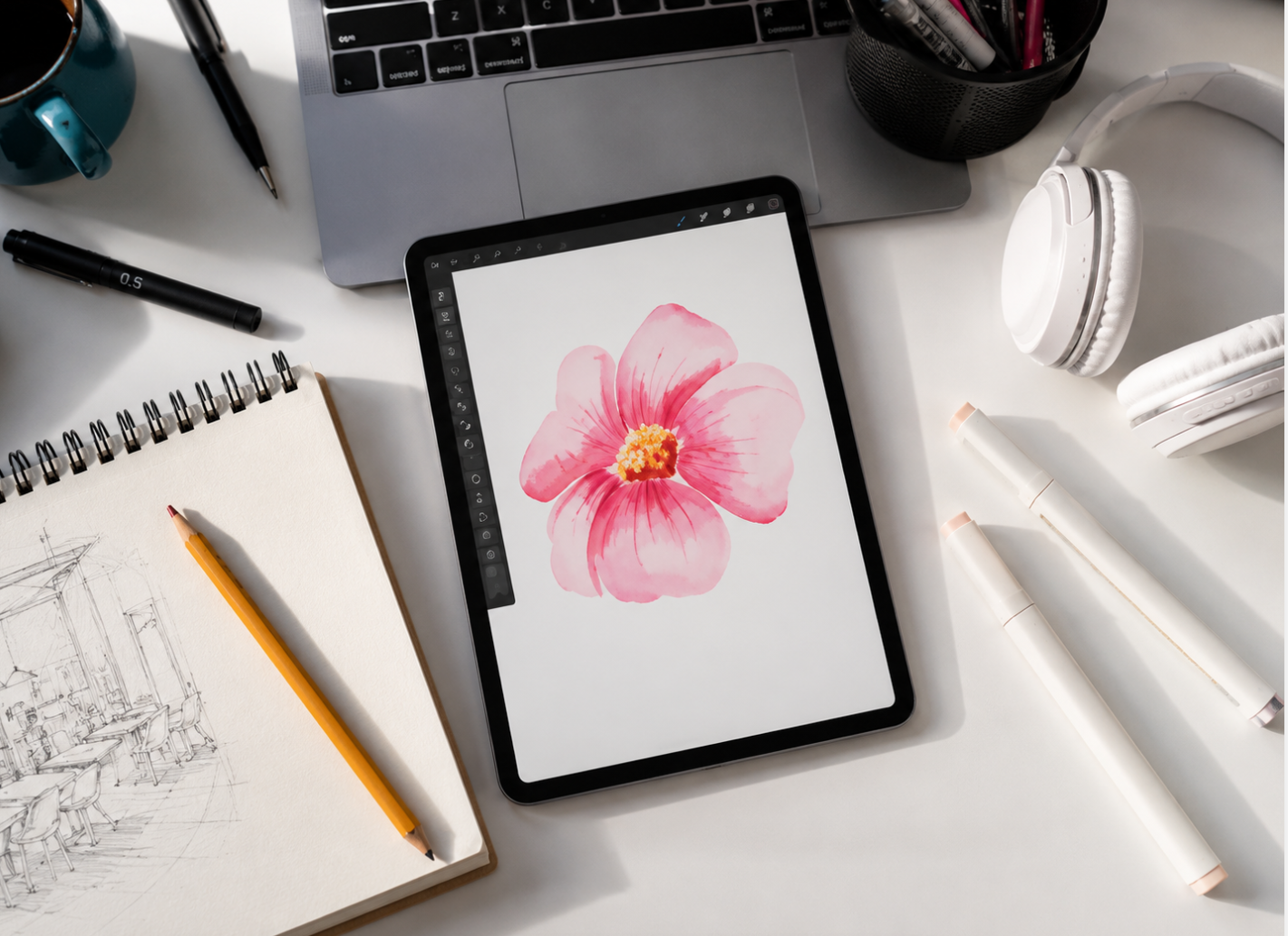
Procreate is a digital illustration and painting app designed for iPad. It allows users to draw directly on the screen using a stylus, most commonly the Apple Pencil. Instead of working with traditional paper and paint, artists use digital brushes, layers, color palettes, textures, and effects to create artwork.
The app is used for many creative purposes. Some artists use it for quick sketching. Others use it for detailed digital paintings, comic panels, product concepts, tattoo designs, lettering pieces, brand illustrations, social media content, stickers, prints, and animation experiments. Its flexibility is one of the reasons it appeals to such a wide range of creators.
Unlike some desktop-based creative programs, Procreate feels especially portable. You can draw on the couch, at a café, on a train, during travel, or whenever an idea appears. For many artists, that freedom is just as important as the technical tools.
Why Procreate Became So Popular
Procreate became popular because it balances power and simplicity. Beginners can start drawing without reading a long manual, while experienced artists can still access advanced tools such as layers, masks, custom brushes, blending modes, perspective guides, animation features, and high-resolution exports.
The drawing experience also feels responsive. When paired with an Apple Pencil, Procreate can respond to pressure, tilt, and stroke movement in a way that feels close to traditional drawing. This matters because artists often care about flow. If the tool feels slow or awkward, creativity gets interrupted.
Another reason is affordability compared with traditional art supplies and some professional software subscriptions. Traditional art can require paper, canvases, paints, pens, inks, brushes, markers, and storage space. Procreate gives users a large digital toolkit with a one-time app purchase, making it accessible for students, hobbyists, and creators testing digital art for the first time.
Creative Reminder
Procreate is easy to begin with, but strong artwork still comes from observation, practice, composition, color understanding, and patience. The app gives you tools; your skill grows by using them consistently.
Key Features That Support Creativity
One of Procreate’s strongest features is its brush system. The app includes many brushes for sketching, inking, painting, blending, texture, calligraphy, airbrushing, charcoal effects, and more. These brushes can imitate real art tools or create effects that are only possible digitally.
Brush customization is especially useful. Artists can adjust size, opacity, grain, pressure behavior, shape, spacing, taper, and texture. This allows creators to build a brush that matches their personal style. Designers can even import brushes made by other artists or create their own for specific projects.
Layers are another essential feature. Layers let you separate different parts of an artwork, such as sketch, line art, color, shadows, highlights, background, and effects. This makes editing easier because one part can be changed without damaging the entire piece.
Procreate also includes blending modes, selection tools, transform tools, color adjustments, clipping masks, alpha lock, perspective guides, symmetry tools, and time-lapse recording. These features make the app useful not only for freehand drawing, but also for more structured design and illustration work.
A User-Friendly Interface for Beginners and Professionals
One reason Procreate feels approachable is its clean interface. The main canvas stays open and uncluttered, while tools remain close enough to access quickly. This gives creators a large drawing area and reduces the feeling of being overwhelmed by menus.
Simple gestures make the workflow faster. Tapping with two fingers can undo, pinching can zoom, and dragging can move around the canvas. These gestures may feel small, but they help artists stay in rhythm. Instead of stopping to search for buttons, creators can keep drawing.
This interface design matters for beginners. A new artist may not understand every advanced function immediately, but they can still start with the basics: choose a canvas, pick a brush, select a color, and draw. As confidence grows, they can explore layers, masks, custom brushes, animation, and export settings.
Professionals also benefit from speed. A clean interface helps with rough concept sketches, client revisions, quick thumbnails, and polished artwork. The app can feel casual enough for brainstorming but powerful enough for serious production.
How Procreate Fits Into Creative Workflows
Many artists use Procreate as part of a larger creative workflow. For example, an illustrator may sketch concepts in Procreate, refine the artwork in the same app, then export the file for final adjustments in another design program. A designer may create hand-drawn brand elements in Procreate and then use them in logos, packaging, websites, or social media graphics.
Procreate can also work alongside desktop software. Some creators sketch on iPad because the drawing experience feels more natural, then export files for layout, editing, printing, or animation work. This flexibility makes it useful for people who do not want to be locked into one creative environment.
File export options are important here. Artists may need image files for posting online, layered files for editing, transparent PNGs for stickers, or high-resolution exports for print. Planning the final use before starting the artwork helps avoid size and quality problems later.
Procreate for Different Types of Creators
Procreate is not limited to one kind of artist. Beginners use it to practice drawing without needing a full art studio. Illustrators use it to create finished pieces. Lettering artists use it for calligraphy and typography experiments. Designers use it for brand elements, icons, textures, and visual concepts.
Entrepreneurs and small business owners can also use Procreate creatively. A bakery owner might sketch packaging ideas. A clothing brand founder might draw print concepts. A content creator might design digital stickers, thumbnails, or social graphics. Even if the final design is later refined by a professional designer, Procreate can help communicate the original idea more clearly.
For hobbyists, the appeal is simple: it makes drawing fun and flexible. There is no need to clean brushes, buy new sketchbooks, or worry about wasting paper. Mistakes can be undone, colors can be changed instantly, and old artwork can be revisited anytime.
Learning Procreate Through Community and Tutorials
Procreate has a large creative community, and that community is one of the best parts of learning the app. Artists share brushes, tutorials, speed paintings, drawing challenges, process videos, color palettes, and project ideas across platforms such as YouTube, Instagram, TikTok, Pinterest, Reddit, and online learning sites.
Beginners can learn specific skills one at a time. One tutorial may teach how to shade a face. Another may explain how to use clipping masks. Another may show how to create a watercolor effect or animate a simple blinking character. This makes learning less overwhelming because each lesson can focus on one practical result.
Community challenges can also help artists stay motivated. Drawing prompts, monthly challenges, style studies, and themed projects give creators a reason to practice consistently. Sharing progress publicly can feel intimidating at first, but it often helps artists receive feedback and notice improvement over time.
Tips for Getting Better Results in Procreate
One of the best ways to improve in Procreate is to build a simple workflow. Many artists begin with a rough sketch layer, lower its opacity, create a cleaner line layer above it, then add color layers underneath. Shadows, highlights, textures, and final adjustments can be added separately. This keeps the artwork organized and easier to edit.
It also helps to create a small favorite brush set. Procreate includes many brushes, and downloading more can be exciting, but too many choices can slow you down. Choose a few sketching, inking, painting, blending, and texture brushes that you enjoy. Familiar tools often produce better results than constantly switching to new ones.
Use references when drawing. Professional artists use references all the time. A reference can help with anatomy, lighting, clothing folds, perspective, color, object design, and composition. Reference use is not a weakness; it is part of building stronger visual accuracy.
Finally, save versions of important work. Digital art makes it easy to duplicate a canvas before making major changes. This gives you freedom to experiment without fear of ruining the original artwork.
Procreate Practice Tip
Do not try to master every Procreate feature at once. Learn one tool, use it in a small project, then move to the next. Consistent practice with simple artwork often teaches more than watching endless tutorials without creating.
Common Mistakes to Avoid
One common mistake is using too many layers without naming or organizing them. Layers are helpful, but a messy layer stack can become confusing. Naming important layers and grouping related elements can save time, especially on detailed artwork.
Another mistake is starting with the wrong canvas size. If the artwork needs to be printed, the canvas should be large enough from the beginning. Enlarging a small canvas later can reduce quality. Before starting a serious piece, think about whether it will be used online, printed, or exported for another program.
A third mistake is relying too much on fancy brushes. Custom brushes can be useful, but they do not replace drawing fundamentals. Composition, shape, value, color, perspective, and storytelling still matter. A simple brush in skilled hands can create stronger work than a complex brush used without control.
Beginners may also compare their early work to professional artists online. This can be discouraging. The better comparison is your current work against your older work. Improvement in art is often gradual, but it becomes visible when you keep creating.
Final Thoughts
Procreate has earned its place in the digital art world because it makes creative work feel direct, portable, and flexible. It gives artists a digital canvas that can be simple when they are learning and powerful when they are ready for professional-level work.
Its brushes, layers, Apple Pencil support, customization options, export flexibility, and active community make it useful for many creative paths. Whether someone wants to sketch for fun, build a portfolio, create brand visuals, design products, make social media graphics, or explore digital painting, Procreate offers a practical starting point.
The most important thing is to use the app regularly. Open a canvas, test brushes, follow tutorials, join challenges, study references, and finish small projects. Over time, Procreate becomes less like a new app and more like a familiar creative space where ideas can grow into finished artwork.
Final Reminder: Procreate is powerful because it supports both quick creative exploration and polished digital artwork. Start with simple tools, learn layers and brushes gradually, use references, save versions of your work, and practice consistently. The app can help you create more freely, but your growth comes from showing up and drawing often.